
Towards the bottom of a record page there may be some additional fields; these are called User Defined Fields or UDFs for short. These fields are specific to your site and will have been added by your administrator.
UDFs are unique to each record type, they can also be unique to a specific classification of record. For example, a Reactive Task may have different UDFs to a Planned Task because different information is required to complete each type of Task. There may also be UDFs that are common across all classifications, these fields will appear on the record regardless of which classification has been selected.
Depending on your security role some UDFs may be hidden to you. For example, a Contact record may contain a Protected UDF group called 'Personal Contact Details'. Information in these fields should be available to some users but not all, it would therefore be labelled as a Protected UDF Group allowing some users to access it but not every user on the site.
UDFs can also be labelled as 'Read Only' meaning that they cannot be edited.
A number of field types can be used in UDFs such as Text, Numeric, Dropdown Menus, Record links and Date Pickers. Record link type UDFs allow you to add a record as a link that when clicked would take you to the relevant record page to a record. UDFs can also be displayed in a table, to add a new row to this table click on the Add New Record button shown below.
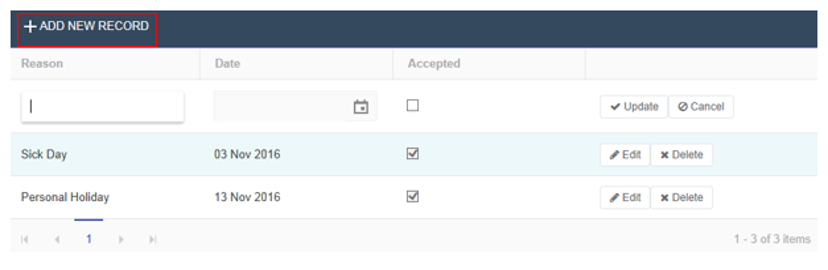
Fill in the details required then click ‘Update’ to add the row or click ‘Cancel’ to delete the row. After you have added a row you have the option to edit it by clicking ‘Edit’, or delete it by clicking ‘Delete’.