
Introduction
Search allows you to search for any lease within the system, filter through leases or export a list of leases as a pdf or an excel file. Clicking on this option will open the page shown below.
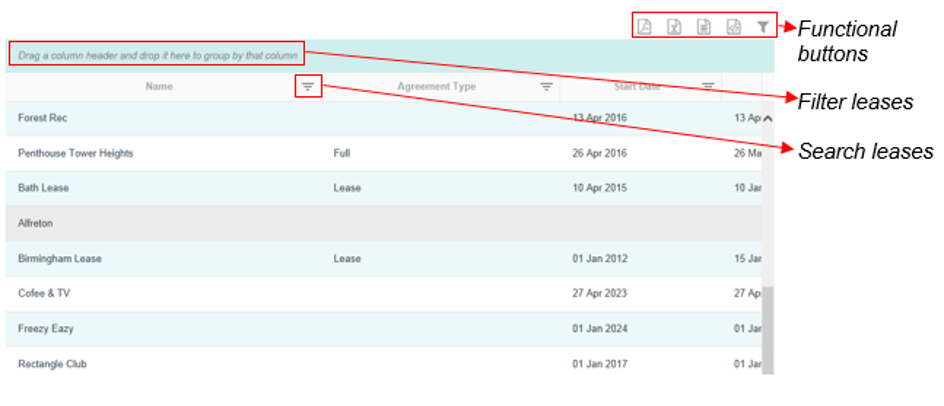
The list of lease records contains the following information:
- Name
- Agreement Type
- Start Date
- Expiry Date
- Tags
Search Lease
To search for leases click the button next to the column header. For example, if you wanted to search by Name you could click the
 button next to Name.

This will generate the drop down menu shown below; from here you will be able to use a more advanced filter to narrow down your search.
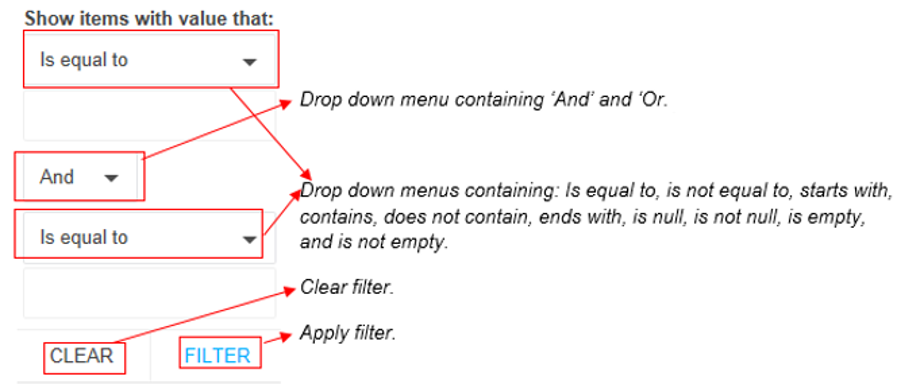
Use the drop down menus to define your search. For example, you may wish to search for a lease whose name starts with the letter A AND ends with the letter E; in this case you would fill in the search filter as shown below.
Clicking on ‘Clear’ will take you back to the lease, clicking on ‘Filter’ will apply your search criteria and generate the results in the record table.
Sort Lease
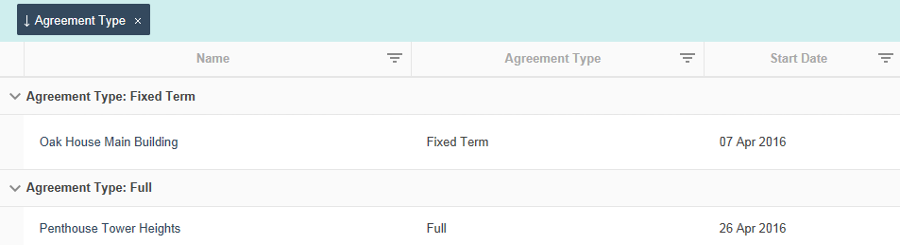
You can also sort items by grouping them; to do this drag the column header that you wish to group by into the blue box above the columns. This will sort the leases into groups defined by the column header, an example is shown below. I chose to sort the leases by Agreement Type so dragged it into the blue box above the columns, as you can see the lease have now been grouped by Agreement Type.
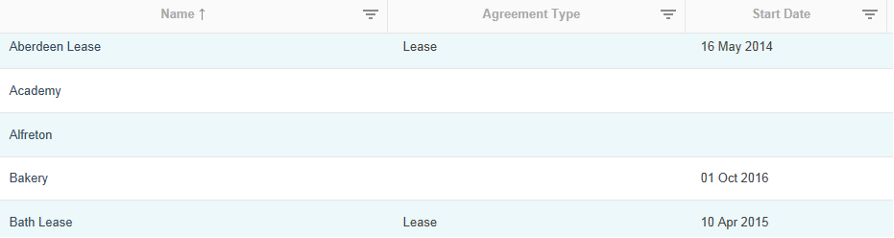
To change the order that the leases are displayed in click the column header that you wish to organise by. Clicking once will arrange them in alphabetical order defined by the information in that column; an example is shown below.
Clicking the column header for a second time will arrange the leases in reverse alphabetical order as shown below.
Clicking the column header for the third time will return the leases to displaying in the original order.
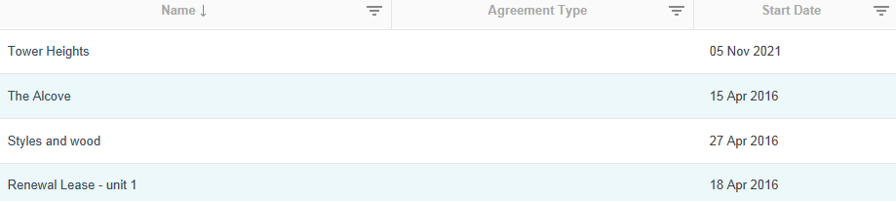
Other filtering and sorting options are contained in Manage Search View
Functional Buttons
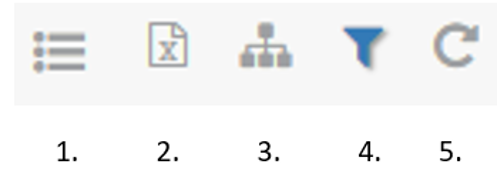
- Column Selector, from here you can define what columns are shown within the search results. See Manage Search View
- Export allows you to export the search table to a number of file formats. When exporting to CSV, XML, and Excel (Import) all fields will be exported regardless of whether or not they appear in the search table; when exporting to Excel or PDF only columns displayed in the search table will be exported.
- Classification toggles the view of showing the left pane of User Defined Fields. See UDF Classification Filter within Manage Search View
- Custom filters allow you to conduct a more detailed search of the lease records; for more information on this function see Custom Filters.
- Reset Filter returns the filters to the default view on a search page. See Reset Filters within Manage Search View