
Introduction
The iSIte site is split into a number of different modules. This document will show you how to create, search for and view a lease record within the iSIte site.
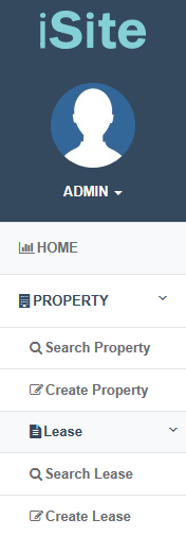
When you log into iSite there will be a menu on the left-hand side of the page. Clicking on Lease will open a drop down menu; from here you will have the option to Create or Search for a contact record.
Create & Edit
Creating a Lease
Create allows you to create a new lease in the system. Clicking on this option will open the page shown below.
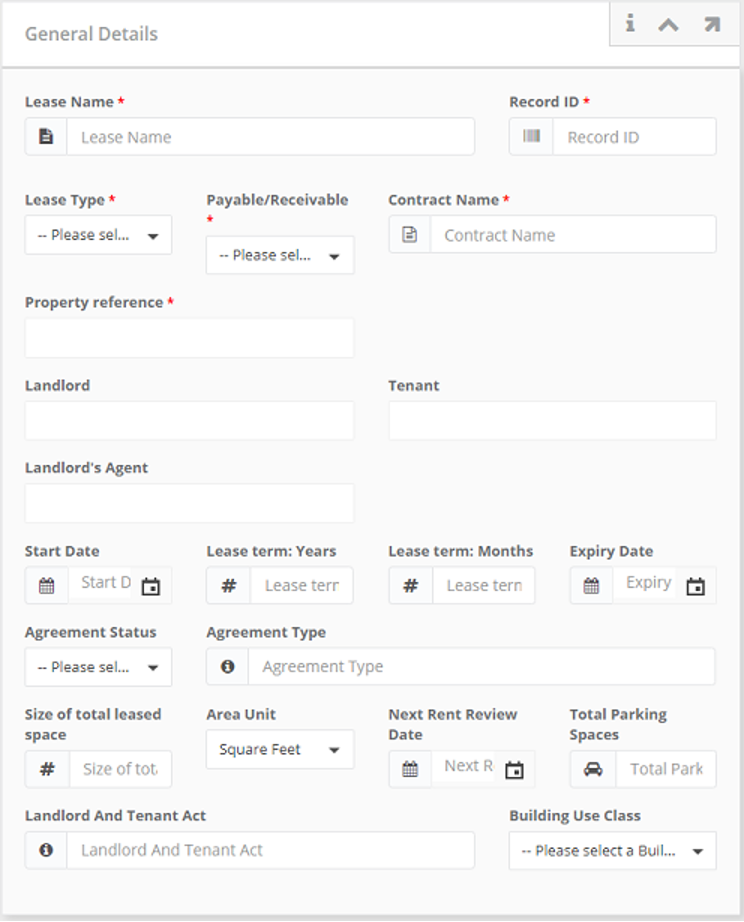
To create a new lease you will need to fill in all of the mandatory fields; mandatory fields are marked with a red *. Fields not marked with a red star are optional and you can fill them in as required.
Users can either link/populate a contact name or an Organisation within the following Lease record fields, Landlord, Tenant and Landlord’s Agent.
You can use the left icon selector to choose which type of record you want to populate within the fields. This is the same for all 3 fields.
The Create Lease page is broken down into the following sections:
General Details
|
Field |
Type |
Additional Information |
|
Lease Name |
Free text field |
This is a mandatory field. Name of the lease. |
|
Record ID |
Free text field |
This is a mandatory field. Reference number for the lease. Record ID can be manually entered or automatically generated depending on the configuration set by your administrator. If the record ID is set to be generated automatically it will not be available on the page for editing. |
|
Lease Type |
Drop down field |
This is a mandatory field. the lease type e.g. Sub lease. |
|
Payable & Receivable |
Drop down field |
This is a mandatory field. is the lease Payable or Receivable |
|
Contract Name |
Free text field |
This is a mandatory field. Name of the contract. |
|
Related Property |
Dynamic search |
This is a mandatory field.Type the first 3 letters of a property (which is already set up in the system) and a dropdown list will appear. |
|
Landlord |
Dynamic search |
Type the first 3 letters of a contact or organisation (which is already set up in the system) and a dropdown list will appear. |
|
Tenant |
Dynamic search |
Type the first 3 letters of a contact or organisation (which is already set up in the system) and a dropdown list will appear. |
|
Landlord’s Agent |
Dynamic search |
Type the first 3 letters of a contact or organisation (which is already set up in the system) and a dropdown list will appear. |
|
Start Date |
Date picker |
Start date of the lease. |
|
Lease Term: Years |
Numeric field |
Length of the lease. |
|
Lease Term: Months |
Numeric field |
Length of the lease. |
|
Expiry Date |
Date picker |
End date of the lease. |
|
Agreement Status |
Drop down field |
Agreement statues of the lease e.g. Valid |
|
Agreement Type |
Free text field |
The type of agreement. |
|
Size of Total Leased Space |
Numeric field |
Size of leased space. |
|
Area Unit |
Drop down field |
Unit of lease space e.g. Meter squared |
|
Next Rent Review Date |
Date picker |
Date of the next rent review. |
|
Total Parking Spaces |
Numeric field |
Number of parking spaces. |
|
Landlord and Tenant Act |
Free text field |
|
|
Building Use Class |
Drop down field |
building class use e.g. Office. |
Commercial Details
|
Field |
Type |
Additional Information |
|
Rent Frequency |
Free text field. |
Rent frequency. |
|
Annual Rent (Gross) |
Numerical field. |
Gross annual rent. |
|
Annual Rent (Net) |
Numerical field. |
Net annual rent. |
|
Rent VAT Code |
Free text field. |
Rent VAT Code. |
|
Annual Service Charge (Gross) |
Numeric field. |
Gross annual service charge. |
|
Annual Service Charge (Net) |
Numeric field. |
Net annual service charge. |
|
Service Charge VAT Code |
Free text field. |
Service Charge VAT Code. |
Liabilities
|
Field |
Type |
Additional Information
|
|
Internal Repairs |
Drop down field |
Who is liable for internal repairs? |
|
External Repairs |
Drop down field |
Who is liable for external repairs? |
|
Building Insurance |
Drop down field |
Does the related property of the lease have building insurance? |
|
Loss of Rent Insurance |
Drop down field |
Does the lease have loss of rent insurance? |
|
Public Liability Insurance |
Drop down field |
Does the lease have public liability insurance? |
|
Plate Glass Insurance |
Drop down field |
Does the lease have plate glass insurance? |
|
Rates |
Drop down |
Rates of the lease |
|
Internal Decorations |
Drop down field |
Who is in charge of internal decoration? |
|
External Decorations |
Drop down field |
Who is in charge of external decoration? |
Clause
|
Field |
Type |
Additional Information |
|
Break Option Type |
Dropdown |
Break option for the lease |
|
Break Option Date |
Date picker. |
When can the break option be implemented |
|
Break Option Notice (Months) |
Numeric field. |
Months notice needed to break option. |
|
Break Option Notice (Days) |
Numeric field. |
Days notice needed to break option. |
|
Special Conditions |
Free text field. |
Special condition for break option(s) |
|
Can we sublet |
Tick box. |
Can tenants sublet the related property. |
Financial Details
|
Field |
Type |
Additional Information |
|
Rent Type |
Drop down field |
Rent type of the lease |
|
Review Basis |
Drop down field |
Revew basis of the lease |
|
Premium Paid On |
Drop down field |
When is the premium paid |
|
Rent Payment Pattern |
Drop down field |
What is the rent payment pattern |
|
Turnover Percentage |
Numeric field. |
Turnover percentage of the lease |
|
Turnover Notes |
Free text field. |
Turnover Notes |
|
Service Charge Percentage |
Numeric field. |
Service Charge Percentage of the lease |
|
Service Charge Notes |
Free text field. |
Service Charge Notes |
|
Advance & Arrears |
Drop down field |
Advanced & Arrears? |
|
Rent Review Pattern |
Drop down field |
Rent review pattern |
|
Rent Payment Date |
Date picker. |
Rent Payment Date |
|
Premium Paid |
Numeric field. . |
How much premium has been paid |
|
Premium Notes |
Free text field. . |
Premium Notes |
|
Contribution Received |
Numeric field. |
Contribution received |
|
Contribution Notes |
Free text field. . |
Contribution Notes |
|
Classifications |
Multi Select |
Categorise the property using the classifications in the system. For more classifications tile click Here |
Some record may have Additional Details sections. To see more about these got to Additional Details.
Completing the Form
Once you have completed all of the fields that you require, scroll to the bottom of the page. From here you will be presented with the three options shown below.

- Create will create the lease record and take you to that record.
- Create & New will create the lease record and then present you with a blank form to complete.
- Cancel will return you to the lease search page without saving