Search allows you to search for any programmes within the system, filter through programmes or export a list of programmes as a pdf or an excel file. Clicking on this option will open the page shown below.
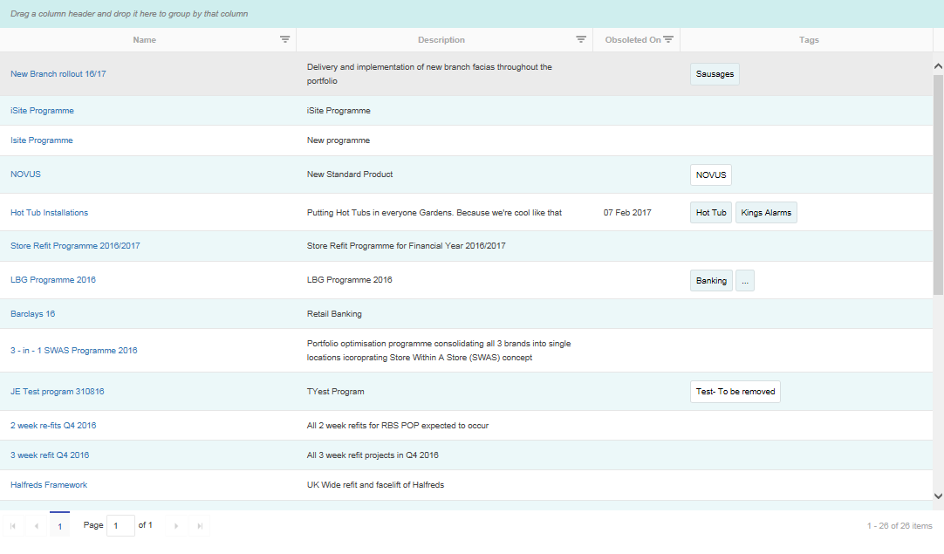
The list of programmes contains the following information:
- Name
- Description
- Obsoleted On
- Tags
Sort Programmes
Filters
Programmes can be filtered by using the  button next to each column header; for more information on how to use this function see Filters.
Sort projects
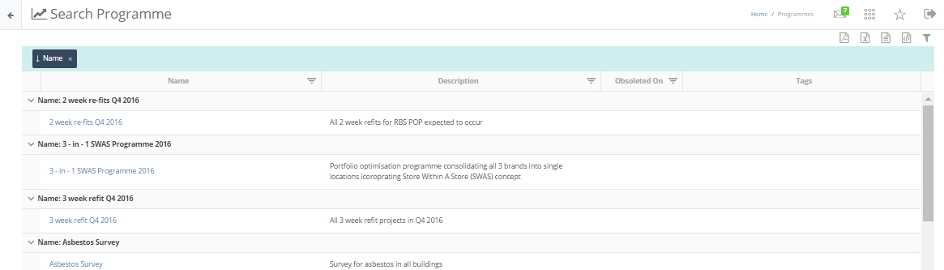
You can also sort items by grouping them; to do this drag the column header that you wish to group by into the blue box above the columns. This will sort the projects into groups defined by the column header, an example is shown below. I chose to sort the programmes by Name so dragged it into the blue box above the columns, as you can see the programmes have now been grouped by Name.
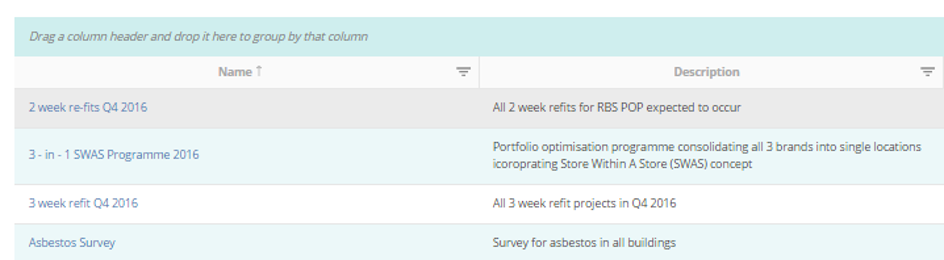
To change the order that the programmes are displayed in click the column header that you wish to organise by. Clicking once will arrange them in alphabetical order defined by the information in that column; an example is shown below.
Clicking the column header again will arrange the programmes in reverse alphabetical order, clicking it for the third time will return it to normal view.
Functional Buttons

- Column Selector, controls which columns are visible within the search results
- Export allows you to export the search table to a number of file formats. When exporting to CSV, XML and Excel (Import) all fields will be exported regardless of whether or not they appear in the search table; when exporting to Excel or PDF only columns displayed in the search table will be exported.
- Select Classification utilises the Programme Type filter in the right hand pane. The pane can be open & closed by selecting this option
- Custom Filters allows you to conduct a more detailed search of the Programme records; for more information on how to use this function see Custom Filters.
- This will remove all column and custom filters, and restore any default search filters such as hiding obsolete records
- Shelve allows you to add the selected Programme to the Programme Shelf.
- Clear Shelf and shelve selected records will clear any Programmes already on Shelf and the currently selected Programmes
- Go to Shelf takes you to the Task Shelf; for more information on this function see Programme Shelf.
Programme Shelf
Programme shelf allows you to separate programmes from the search so that you can perform bulk actions on them.
At the top right of programme search there are 2 buttons: "Shelf" and "Go to shelf"

Shelve  only becomes available once you have selected a programme (or multiple); when you click Shelve it will add all of the selected items to the programme shelf.
Then you can go to programme shelf by clicking "Go to programme shelf" and it will be populated with all of the programmes you have sent to the shelf. An example programme shelf is shown below.
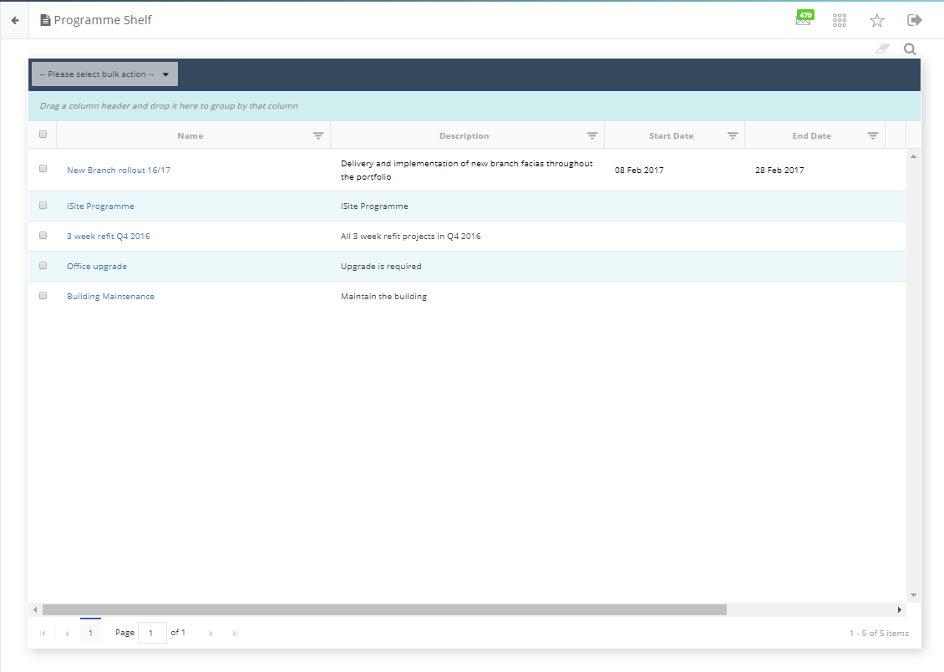
You can remove any programme off the shelf by selecting it and clicking  at the top right-hand corner. To go back to programme search click the
  .
.
Once you have selected one or more of the programmes you can perform bulk action on the programmes from the dropdown at the top of the page.
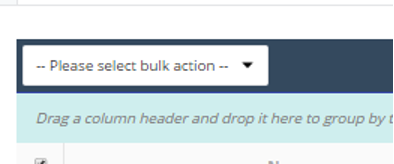
The bulk actions you can perform are:
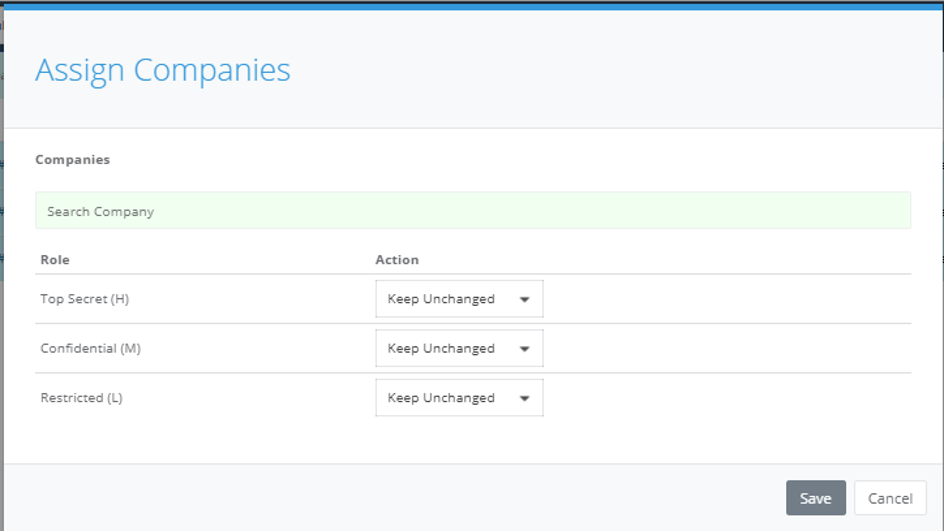
Assign Companies
This allows you to link companies to your programme and allocate & remove security to them on bulk.
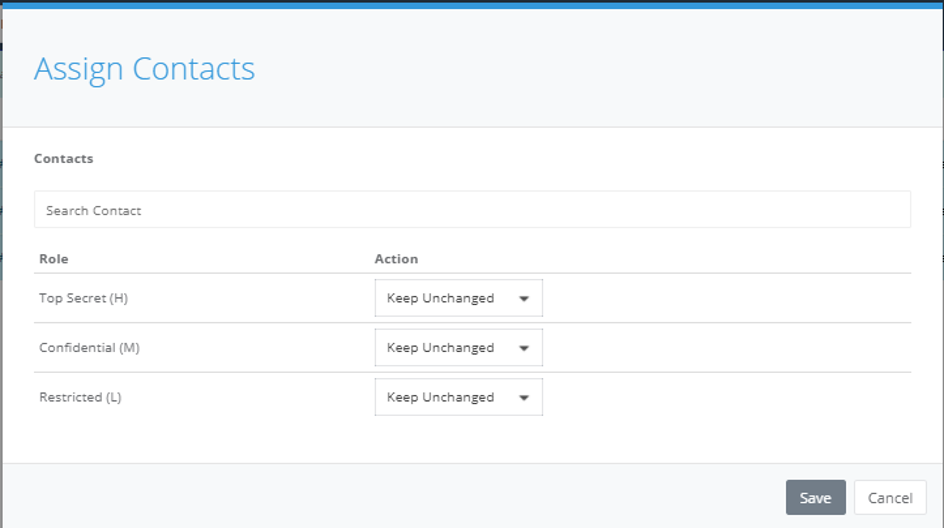
Assign Contact
This allows you to link contacts to your programme and allocate & remove security to them on bulk.